Creating a task via the Outlook add-in
Creating a task via the Outlook add-in
When adding an email and/or attachment(s) into your matter in Thread, you can create a task for this email and/or attachment(s) directly within the add-in, for any users to follow up on this, i.e. to respond to an email, or to review the received documents.
The created task will show as ‘Email task: Email subject’ in Thread, and it can be set as a standard, or document review task.
Creating a task via the add-in
Open Outlook and select the email you wish to save to a matter on Thread.
Standard – This task will appear on the Tasks tab in the To-do list.
 If you leave the task type as ‘None’, task will not be created.
 When selecting assignees, you will see yourself and the matter owner at the top of the list, for your convenience.
1 – Task Type – Choose if you would like to create a standard or a document review task.
2 – Assigned to - Select the users you wish to assign to the task you are creating. All selected users will be assigned to the task.
3 - Priority - Set the task priority.
4 – Due Date - Select the date and time that this task is due for, if applicable.
5 – Task Items - Select the items for which you need to create a task (email and/or attachment/s). A task will be created for each item separately.
Click Add to matter at the bottom when you have applied all desired options in the add-in. The task(s), email and/or attachment(s) will be added to the matter.
Viewing the created task in Thread
1. When in the matter you saved the email and/or attachment(s) to, you can view the History of the matter which will also show the tasks that were created. The task will be titled 'Email Task: Email subject' or 'Email Task: Attachment name', which you can click on to edit if needed.
2. There will be a separate email task for email and any documents. Click the icon to the left of the task to open it.
3. Within the task, you can click to preview the email or open the document.
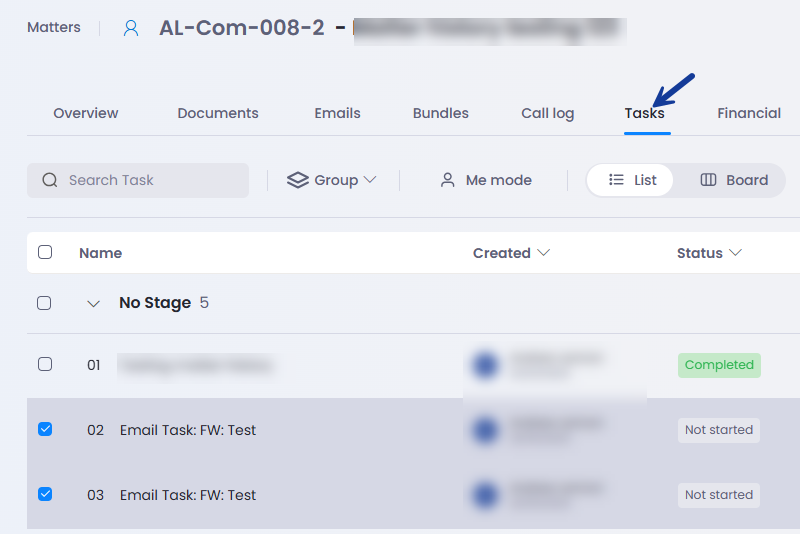
4. Tasks will also be visible on the matter Tasks page, and the To-do list either in Tasks or Document Review tab, depending on the selected task type.

 Learn more about the Outlook add-in on Thread For Email Outlook Add In, or on managing tasks in Thread on Tasks Management – Overview.