Template Designer Common Sign In Issues
If you are having issues signing-in to your Template Designer, please see the following common causes and solutions.
Account used for your Windows device is different from your Thread account
1. Open Word and click on the username in the top right corner
2. If this is not the account you use for Thread, click on Sign in with a different account.
3. Enter your M365 credentials for the account you use with Thread.
4. Once you've signed into Word with your Thread account, click Sign In again on your Template Designer, and pick your Thread account.
5. Your Template Designer should now be signed in.
Template Designer not signing in with your Thread account
If you are already using the same account on your device as with Thread, but your Template Designer is still not signing in, please remove the add-in and add it again.
1. In Word, go to Insert tab and click on My Add-ins
2. Click on the ellipsis next to Thread Template Designer and choose Remove.
3. Then go to My Add-ins again and choose Store. Search for Thread and click Add next to Thread Legal Template Designer for Word.
4. Open Thread Template Designer and Sign In.
Template Designer missing in toolbar
If you have added the Template Designer to your add-ins, but it is not showing in your toolbar, please follow below:
1. In Word, go to Insert tab and click on My Add-ins
2. Choose the Template Designer and click Add
3. Go back to Home tab and you should see it now at the far right in the toolbar.
Template Designer not signing in on Word Online
1. If you are using Word Online, and your Template Designer is not signing in, please check that you are using the same account on your Browser as your M365 account for Thread in Word.
Edge: 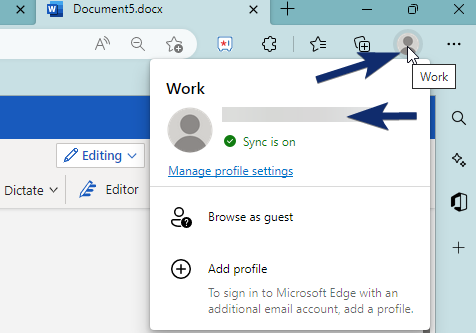 Chrome: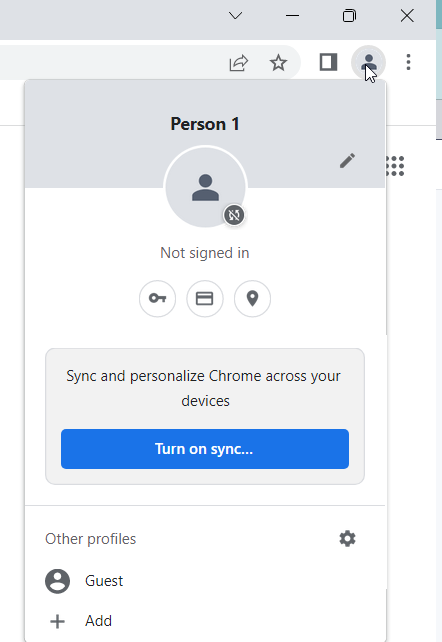
Edge: 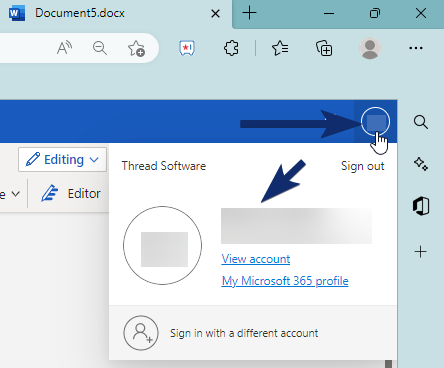
2. If you see a different account showing, choose Sign in with a different account to sign in with the correct one.
3. If you are still not able to Sign In to Template Designer, clear your browser cache by following the steps here.
Contact Thread Support
If you have tried all of the above and still having issues signing in, please contact our support team on support@threadsoftware.com or via Live Chat on Thread Legal and our dedicated agents will assist you further.